Review the role of your Instagram avatar and prepare a better profile image. The viewer is temporarily unavailable; please try again later to review your selected account.
WhatIsanInstagramProfilePictureViewer?
A profile picture viewer is intended to display an available account image in a separate preview, making its presentation easier to review.
An avatar has a different job from a feed photograph. It needs to remain recognisable beside a comment, a short biography, or a small account label. A beautifully detailed image can lose its meaning when displayed in a small circle. That is why reviewing the crop, contrast, and main subject matters more than simply choosing a large file. For your own profile, begin with an image you are entitled to use and consider where the most important detail sits. For another account, treat the picture as one piece of public context rather than proof of who is behind the profile.
A circular display can remove details near the corners of a rectangular photograph. Small lettering may become difficult to read, and a busy background can compete with a face or logo. Looking at your chosen image at a small size helps reveal those problems. You can make this check with your own source file even before any external lookup is available, using a simple circular crop preview in your editing application.
A profile picture viewer concerns the public image available for an account. It does not recover hidden detail, unlock a private account, or guarantee that every available image is the original uploaded file. Check the quality of the image you choose.
The profile picture viewer is temporarily unavailable; please try again later. Keep the correct public username ready. Meanwhile, review your own source image and use the guidance below to assess the final crop you selected.
WhyMightYouWanttoReviewaProfilePicture?
Start with your own account. Is the subject clear without zooming? Does the crop leave enough room above a person's head or around a logo? Can a viewer recognise the same visual identity across your profile and other public channels? These questions are especially useful after a rebrand, a new portrait session, or a change in the focus of your content. Create two or three candidate crops and compare them at a realistic display size. Ask someone who knows the account what they notice first. Their answer may tell you more than examining fine detail in an enlarged version.
A larger preview can also help you notice an unintended crop, an awkward edge, or a background element that distracts from the subject. It cannot establish the quality of the original upload if only a smaller version is available. Keep your source file so you can compare the edited image with the version you chose to publish.
For teams, an avatar review can be part of a simple brand checklist. Confirm that the handle, display name, logo, and biography all refer to the same project. Check older campaign documents for outdated images, and agree which file teammates should use. A single clearly named approved asset makes it easier to avoid accidental variations when several people maintain your public presence.
A public account picture may help you recognise an account you already know, but it is not reliable identity verification. Images can be reused, copied, changed, or chosen for artistic reasons. Avoid drawing conclusions about a person's identity, gender, background, or intentions from a small photo. If a message involves a purchase, a collaboration, or a sensitive request, verify it through a trusted channel you already have.
For collaboration research, compare the public handle and linked website with the information supplied by the creator. Look for consistency across the whole profile instead of treating a familiar photograph as sufficient evidence. If something seems unclear, ask the person directly through an established contact method. A picture viewer cannot confirm ownership of an account, approve a partnership, or tell you whether an unfamiliar message is genuine.
A future download option would need to point to an actual retrieved image. It is currently unavailable. Saving an image also does not establish permission to publish it elsewhere; ask the creator about your intended use before including their photo in marketing material.
HowtoUsetheInstagramProfilePictureViewer
Use a public Instagram username. There is no reason to enter an account password in this field. The viewer is temporarily unavailable; please try again later, and check the response before expecting a profile image to review or save.
Enter a Username
Choose package
LikesViewsFollowers
Added to cart1K Followers · now
Use the handle rather than the display name, biography, or a screenshot. Check that it refers to the profile you intend to review. If you copied a full profile link, take the username from it and check the field's validation message before submitting again.
Check the Status
Your Instagram
@yourusername
Account found
Submit the username and read the response. The viewer is temporarily unavailable; please try again later before looking for the selected account image.
Review the Image
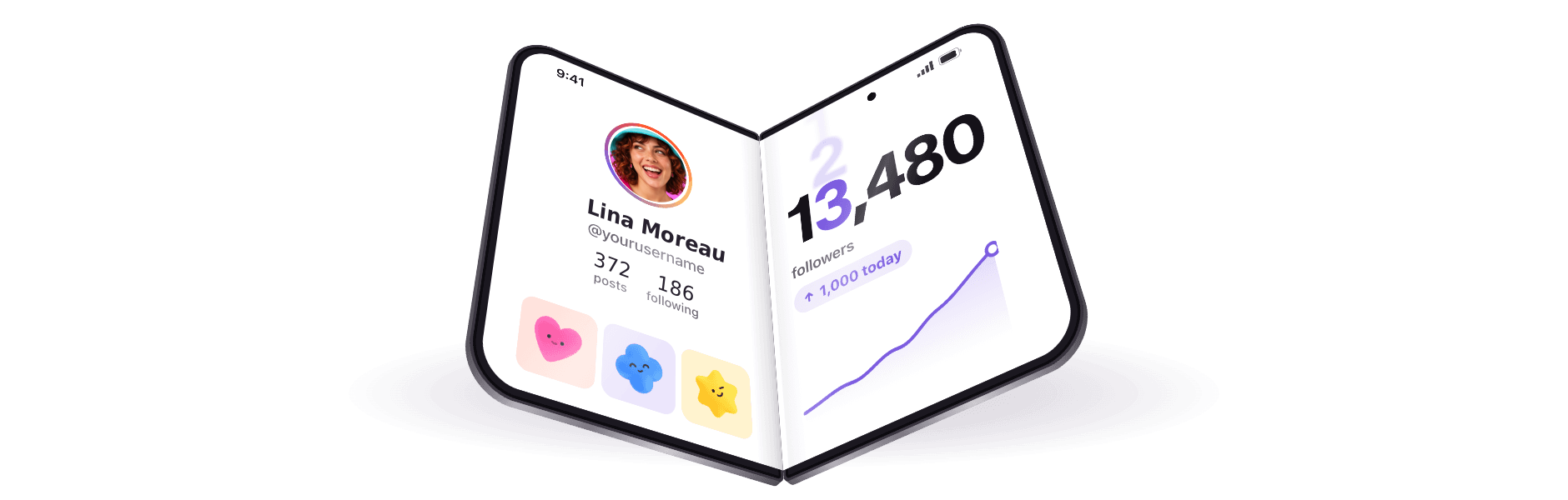
@yourusernameFollowers · 7 days
2,284+1K
112
When an image preview is available, compare the crop and recognisable details rather than assuming enlargement adds resolution. Review the selected image before saving it to your device. The viewer is temporarily unavailable; please try again later, keeping the public username ready so you can return to the correct account.
A practical avatar review can still begin with your own original file. Make a circular crop, reduce the preview, and check the subject against both light and dark surroundings. Keep the process focused on presentation rather than claims about account authenticity. Buzzrang does not use this page to confirm who owns a profile, and an available public image would not provide that confirmation. Clear expectations make the viewer more useful than an oversized preview presented without context.
Howto ChooseaClearInstagram ProfilePicture
Think about the shape of the display first. A square source gives you room to position a subject before a circular crop removes its corners. Keep essential details away from the edges and leave a little breathing room. You do not need to follow a universal pixel recipe to make a sensible choice: use a clear source image and inspect the resulting crop. If you maintain several accounts, label each approved version with its account name so an old or unrelated image does not get uploaded by mistake.
For a portrait, favour a clear subject and enough separation from the background. For a logo, test whether its main shape survives without the surrounding words. A full business lockup that looks good on a website header may be too intricate for an avatar. Consider a simpler approved mark if the original depends on tiny text or delicate details to be understood.
Enlarging a small image cannot reliably restore detail that is not present in the file. If the preview looks soft, locate a better source instead of repeatedly saving and resizing the same copy. Keep your editing file separate from your exported version so you can make a fresh crop when needed.
Check the circle rather than only the square editing canvas. A face near one side can lose important details, while a logo can feel unbalanced if its visual weight is uneven. Try a slightly wider crop and compare both at a small size. The best choice usually makes the subject easy to understand without demanding a long inspection or hiding essential parts.
Consistency helps people recognise a public presence over time, but recognisability is not a guarantee of trust. Use your avatar alongside a clear biography, accurate contact details, and useful posts. Change it deliberately when your project changes, and keep teammates informed about the approved file.
FrequentlyAskedQuestions
No. It cannot bypass privacy restrictions or retrieve content a service cannot legitimately access.
No password is requested for a public username. The viewer is temporarily unavailable; please try again later to check the selected account.
No anonymity guarantee is offered. The viewer is temporarily unavailable; please try again later before requesting the selected account picture.
Yes. The planned feature is free to use. Its current unavailable status is not a paid restriction, and purchasing a service does not change that.
A publicly visible image is not an invitation to reuse it in a post, advertisement, or brand design. Ask the owner about your intended use and any conditions. This page cannot grant permission or provide a legal conclusion about your circumstances.
Choose an image you are comfortable making public, review its crop, and check your account's visibility settings. Do not assume any viewer controls where others encounter it.
A quick startReal-account engagementCustomer experiences
Support around the clockRefill coverA stronger first impression
Clear delivery detailsRefund supportYour platform, your boost
Delivery that gets movingGet seen, periodA quick start
Real-account engagementCustomer experiencesSupport around the clock
Refill coverA stronger first impressionClear delivery details
Refund supportYour platform, your boostDelivery that gets moving
Get seen, periodA quick startReal-account engagement
Customer experiencesSupport around the clockRefill cover
A stronger first impressionClear delivery detailsRefund support
Getseen, period
Get seen, periodA quick startReal-account engagementCustomer experiencesSupport around the clock
Customer experiencesSupport around the clockRefill coverA stronger first impressionClear delivery details
A stronger first impressionClear delivery detailsRefund supportYour platform, your boostDelivery that gets moving
Your platform, your boostDelivery that gets movingGet seen, periodA quick startReal-account engagement
A quick startReal-account engagementCustomer experiencesSupport around the clockRefill cover
Support around the clockRefill coverA stronger first impressionClear delivery detailsRefund support
Clear delivery detailsRefund supportYour platform, your boostDelivery that gets movingGet seen, period
Delivery that gets movingGet seen, periodA quick startReal-account engagementCustomer experiences
Real-account engagementCustomer experiencesSupport around the clockRefill coverA stronger first impression
Refill coverA stronger first impressionClear delivery detailsRefund supportYour platform, your boost
Refund supportYour platform, your boostDelivery that gets movingGet seen, periodA quick start
Get seen, periodA quick startReal-account engagementCustomer experiencesSupport around the clock
Getseen,period
Grow on InstagramTikTok & YouTube Choose Your Next Boost.
Hello, this website uses essential cookies to ensure proper operation and analytics cookies to understand how you interact with it. The latter will only be set after your consent.







 Added to cart1K Followers · now






 Choose